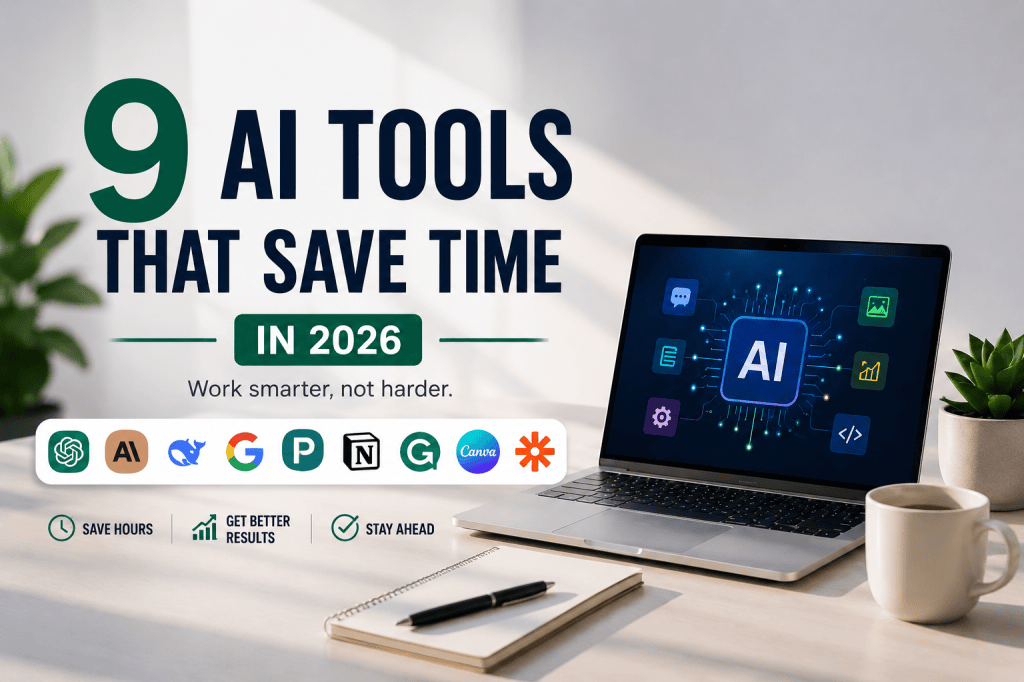
There are more AI tools than most people have time to test. That is the problem.
The best AI tool is not the one with the longest feature list. It is the one that removes a task you repeat, shortens work you already have to do, or helps you get from a blank page to a useful result faster.
This guide is different from a simple list of free AI tools. Here, we are looking at where each tool actually fits in a real workflow, where the tools overlap, and which ones may be worth keeping so you do not end up paying for five subscriptions that solve the same problem.
For this 2026 guide, we focused on tools with clear everyday uses in writing, research, organization, design, coding, reasoning, and automation. The goal is not to collect subscriptions. It is to build a smaller stack that actually saves time.
The quick answer
- Best flexible all around assistant: ChatGPT
- Best for long documents and focused knowledge work: Claude
- Strong low cost option for reasoning, coding, and agent workflows: DeepSeek
- Best if your work lives in Google Workspace: Gemini
- Best for web research with visible sources: Perplexity
- Best when your projects and knowledge already live in Notion: Notion AI
- Best for everyday writing polish: Grammarly
- Best for moving quickly from an idea to an editable visual: Canva
- Best for connecting repetitive workflows: Zapier
🤖 1. ChatGPT: best flexible all around AI assistant
ChatGPT is useful when your day includes several different kinds of work. It can help draft and rewrite content, summarize information, reason through problems, work with uploaded files, search the web when current information matters, and handle image related tasks. That range can reduce the need to jump between separate tools for every small job.
Where it saves time: first drafts, summaries, planning, file analysis, brainstorming, research starting points, repetitive writing, and general problem solving.
Choose it if: you want one flexible assistant that can cover many different kinds of everyday work.
📚 2. Claude: strong for long documents and focused knowledge work
Claude is a strong option when the work involves a lot of text, reasoning, coding, or multi-step knowledge work. It can be especially useful for reviewing long material, restructuring drafts, comparing information, and working through projects where keeping context matters.
Where it saves time: document review, long-form drafting, analysis, coding, and projects that would otherwise require repeated copying and reorganizing.
Choose it if: long documents or deep focused work are a bigger part of your day than quick everyday prompts.
🧠 3. DeepSeek: worth knowing for reasoning, coding, and agent workflows
DeepSeek deserves a place in the 2026 conversation, especially for people who care about reasoning, coding, long context, or agent-style workflows. DeepSeek V4 Pro is available on the web, app, and API, while the current V4 lineup supports both thinking and non-thinking modes and very long context.
Where it saves time: coding help, technical problem solving, reasoning-heavy tasks, working through large amounts of context, and experimenting with agent workflows.
Why it stands out: DeepSeek offers free web access and positions its V4 models as a cost-efficient option, which makes it especially worth comparing before paying for another general AI subscription.
Choose it if: you want a strong alternative for reasoning or coding and price matters to you.
✨ 4. Gemini: a practical choice for Google heavy workflows
If much of your day already happens in Gmail, Docs, Drive, Sheets, Slides, Meet, and other Google Workspace tools, Gemini can save time by working closer to the information you already use. Depending on your Workspace plan, Gemini can help draft and refine writing, summarize and analyze information, take meeting notes, work with files, and assist across several Workspace apps without forcing you to rebuild your workflow somewhere else.
Choose it if: Google Workspace is already the center of your workday.
🔎 5. Perplexity: useful when the answer needs sources
Perplexity is built around web research and source-backed answers. It searches the web, synthesizes information, and shows citations and links to the original sources. That makes it useful at the beginning of a project when you need to understand a topic, compare information, or quickly identify sources worth opening yourself.
Where it saves time: research starting points, source discovery, comparisons, current-information searches, and article or webpage summaries.
Important: citations make verification easier, but they do not remove the need to open important sources and check the underlying claim.
🗂️ 6. Notion AI: useful when your information is already in Notion
Notion AI makes the most sense when Notion is already where you keep projects, documents, tasks, databases, and team knowledge. Its current AI tools can work with workspace context, search connected information, help with writing, generate reports, capture meeting notes, and assist with tasks inside the same system.
If you do not already use Notion, do not move your entire life there just because it has AI. The tool should simplify your system, not create a new organization project.
Plan note: full Notion AI access depends on your plan, while some lower-tier users may receive limited trial access.
✍️ 7. Grammarly: fast help for everyday writing
Grammarly remains useful for people who spend a large part of the day writing emails, reports, documents, messages, and professional copy. Its tools now go beyond basic grammar correction, with rewriting, multilingual support, AI-assisted drafting, and contextual writing help available across supported surfaces.
Where it saves time: polishing emails, rewriting awkward passages, checking clarity, improving tone, and reducing the final editing cycle.
Choose it if: your biggest repeated bottleneck is communication rather than research or automation.
🎨 8. Canva: save time moving from an idea to an editable visual
Canva is useful when the bottleneck is not writing the idea but turning it into something people can see. Its current AI tools can help move from a prompt or rough idea toward editable designs, templates, visual elements, and other creative assets while keeping manual editing available afterward.
Where it saves time: first visual drafts, presentations, social graphics, simple marketing assets, and turning rough creative direction into something editable.
The strongest use is not publishing the first generated result untouched. Use AI to remove blank-page time, then edit the design until it feels intentional, credible, and right for the audience.
⚡ 9. Zapier: best when the real problem is repetitive workflow
Sometimes you do not need another chatbot. You need your apps to stop making you copy the same information back and forth. Zapier connects apps through automated workflows, and its AI features can help build, troubleshoot, and expand those workflows using plain language.
Where it saves time: repeatable app-to-app tasks, notifications, data movement, lead routing, follow-ups, and processes that happen the same way again and again.
Automation is most valuable for a task that happens often and follows a predictable pattern. Automating a messy process before you understand it can simply make the mess run faster.
Which AI tool should you choose?
- If you need one flexible assistant for many kinds of tasks, start with ChatGPT.
- If your work involves long documents and focused knowledge work, compare Claude.
- If you want a strong reasoning or coding alternative with free web access, compare DeepSeek.
- If your day already lives in Gmail, Docs, Drive, Sheets, and Meet, look closely at Gemini.
- If you repeatedly need current web research with sources, Perplexity may remove the most friction.
- If your projects already live in Notion, its built-in AI may save more time than exporting everything elsewhere.
- If writing polish is the bottleneck, Grammarly is the specialist.
- If visuals slow you down, Canva can shorten the jump from idea to editable design.
- If the same task moves between apps every day, Zapier may save more time than another chatbot.
Do not pay for nine tools that do the same job
This is where AI productivity can become AI subscription clutter. ChatGPT, Claude, DeepSeek, and Gemini overlap in several everyday tasks. You probably do not need paid plans for all of them.
- Choose one general assistant for the work you do most.
- Add one specialist only when it solves a repeated bottleneck.
- Use free access or trials first when available.
- Cancel tools you keep forgetting to open.
- Review privacy, data controls, and account permissions before connecting email, files, calendars, or workplace systems.
A simple 7-day test before you pay
Before adding another monthly subscription, give the tool one real week. Pick a task you already repeat and track whether the tool actually removes steps.
- Choose one repeated task that wastes time.
- Use the AI tool for that same task several times during the week.
- Notice how much editing, checking, or manual cleanup is still required.
- Compare the result with your old process.
- Keep the tool only if the time saved is worth the cost and attention it adds.
The Useful Side rule
Start with the task that wastes your time, not the AI tool everyone is talking about. If a tool does not remove enough work to justify its cost, setup, and attention, it is not saving you time.
Keep reading: If you are trying to spend less before committing to another subscription, see our guide to 8 Free AI Tools That Are Actually Useful in Everyday Life (2026).
Turn This Comparison Into a Money-Smart AI Stack
- Which AI Subscriptions Are Actually Worth Your Money?
- 8 Free AI Tools That Are Actually Useful
- The AI Prompt Playbook: 200+ Useful Prompts
- Free AI Certificates and Credentials You Can Earn in 2026
Monetization path: AI products with verified referral or affiliate programs can be linked here when they genuinely match the recommendation. Tracked links will be disclosed clearly; official links stay untracked until then.
AI products, plan limits, and features change quickly. This guide was reviewed September 1, 2026. Check each provider’s current plans, privacy terms, and availability before paying or connecting sensitive accounts.
 The Useful Side